SRT
The universal one. CapCut, Premiere Pro, DaVinci Resolve, Final Cut and YouTube Studio all import SRT generator output directly, no conversion in between.
Paste a link, upload a file or record from your mic. You get a subtitle file — SRT or WebVTT, timed to the speech — to import alongside your video, not captions burned into the picture.
Paste a link and we will fetch the audio
Try:
YouTube, TikTok, Instagram, Facebook, X and Spotify links
Only submit media you own, can access publicly, or are authorized to process. EzScribe does not redistribute source media.
 Accurate AI Transcription
 100+ Languages
 Saved to Your Account
 Private & Secure
Powered by Whisper
#1 in speech-to-text accuracy
Three steps, and the only one that takes real time is the one you do not do yourself.
Paste a link from a supported platform, upload a file from your device, or record straight from the microphone.
Speech is transcribed and split into segments, each with a start and end taken from the audio.
Download the format your editor or player wants. Plain TXT is there too if you only need the words.
All three come out of one job, as sidecar files you import alongside the video rather than captions rendered into it. If all you need is an SRT generator, take the first one and ignore the rest.
Four reasons to generate subtitles rather than key them in by hand.
Most short-form is watched on mute. An auto subtitle generator pass takes minutes instead of the hour it takes to type a track by hand.
A WebVTT track attached to an HTML5 player is the baseline requirement for a video that anyone can follow without sound.
Generate subtitles once and the lesson becomes searchable as well as watchable, which is usually the harder half of the job.
Make the original track here, then translate it with the timings left alone. One source track becomes a dozen language versions.
Subtitles are a transcript plus timing. The subtitle generator runs speech recognition over the audio track and keeps the start and end of every sentence, then packages the result as numbered SRT blocks or a web-native WebVTT file. Because the timing comes from the speech model rather than being spread evenly across the runtime, most tracks import without nudging.
The auto subtitle generator takes the video however you have it: paste a public YouTube, TikTok, Instagram, X or Facebook link, upload the file itself, or record straight from your microphone. The output is identical either way.
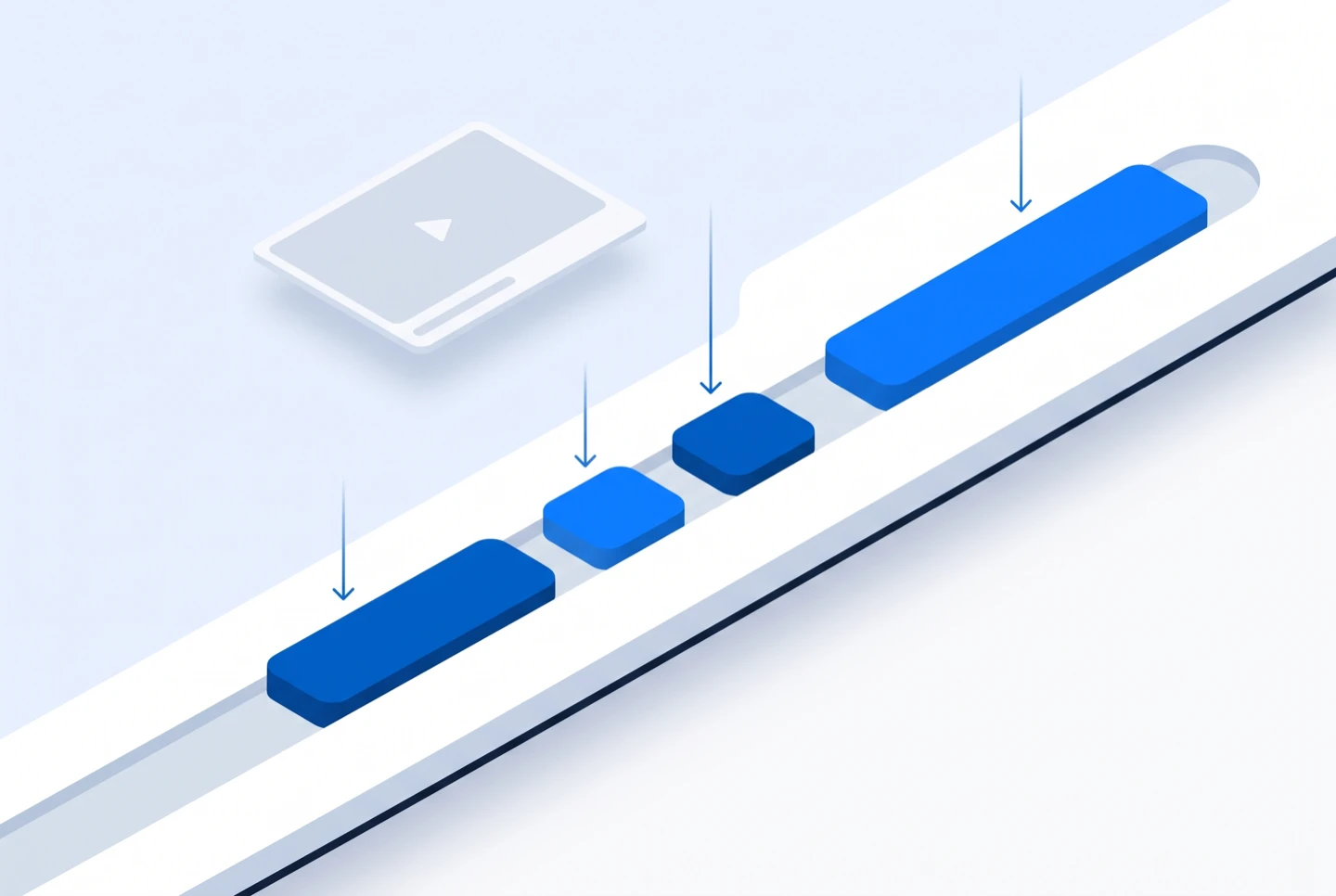
A subtitle generator can hand you one of two things: a file that sits beside the video, or captions painted permanently into the frames. This one makes the file, which is the less obvious choice and usually the better one. A sidecar track stays editable after the video is exported, a viewer can switch it off, a player can restyle it, and a search engine can read it. Burned-in captions are pixels, and pixels cannot be corrected, translated or turned off.
If you do want them burned in, the subtitle generator is still the first step: generate the SRT here, drop it on the timeline in CapCut, Premiere Pro or DaVinci Resolve, and render. Leaving the burn to your editor is deliberate rather than a gap — font, size, position and safe margins are design decisions that depend on the video, and no automatic pass gets them right for a full-bleed vertical and a 16:9 lecture at the same time.
To put a subtitle file you already have into another language with its timings left alone, the video subtitle translator does that instead — it rewrites the text inside the file and leaves every timecode where it was. If you want the words with no timings at all, the MP4 and audio pages run the same engine and return plain prose.
One source in, a timed SRT or WebVTT out. No manual keying, no nudging timecodes line by line.
Generate subtitlesSign in to start. New accounts get free credits.
The questions that come up before the first export.
Add the video — paste a link, upload the file, or record audio in the browser. The speech is transcribed and split into timed segments, and you download the result as SRT or WebVTT.
SRT. Both take it directly, as do Final Cut, DaVinci Resolve and YouTube. Use WebVTT when the file is going into an HTML5 player on a web page.
Each segment carries the start and end taken from the audio during transcription, so the timings follow the speech rather than being spread evenly across the runtime. Overlapping music or crosstalk can still shift a boundary by a fraction of a second.
No. You get a subtitle file to import alongside your video. Burning them in is a render, and that belongs in your editor where you control the font, position and safe margins.
Yes. Transcribe first, then translate the result into any of 100+ languages from the same screen. The timings carry across, so the translated track drops in where the original did.
Long recordings are fine — the ceiling is 12 hours per job. Credits are charged per minute of measured audio, so a long file costs more than a short one but does not need splitting.
This page makes a subtitle track from scratch, out of the audio. The Video Subtitle Translator takes subtitles that already exist and puts them into another language. If you have no subtitle file yet, you want this page.
Yes. A transcription job has to be billed to someone and filed somewhere, so it needs an account. New accounts get free credits, and your transcripts stay in your account afterwards.